Bookstagram Canva templates: how to use them without looking templated
A bookstagram Canva template saves time only if your feed still looks like yours. What to check before buying, the order to edit in, and the layouts to keep.
6 min read · free to read, no sign-up

Most book accounts come to templates for the same reason: the reading is the fun part, and building a wrap-up graphic from a blank canvas every month is not. A good set of bookstagram Canva templates takes that job down to ten minutes. A bad one — or a good one used badly — gives you a feed that looks exactly like the other few hundred accounts that bought it, which is worse than no template at all.
The difference is rarely the template. It is what you check before buying, and what you change in the first hour after.
What a book template has to do that a generic one does not
A template made for coaches or cafés can be bent into a book post, but it fights you every time, because book content has shapes other trades do not. Before buying, look for these specifically:
- A cover frame at the real proportions of a book — roughly two by three. Square photo frames crop the title off a cover, and a cover you cannot read is a post nobody saves.
- Room for several covers at once. Wrap-ups, TBR stacks and recommendation posts all need four to nine covers side by side without them shrinking to stamps.
- Space for a rating that is not a star emoji — a scale, a set of hearts, a line of spice peppers, whatever your account uses.
- A text-only layout for quotes and questions. The posts that start conversations on bookstagram are often words on a background, not photographs.
- Posts at 1080×1350, the portrait shape the grid now shows. A set that only ships squares is a set from several years ago, and it gives away a fifth of the screen.
Check the preview at thumbnail size
Every shop shows its templates large, on a laptop, with the covers already filled in. Nobody sees your posts like that. Zoom the preview out until one post is the size of a fingernail, which is how it sits in a grid on a phone, and ask two questions: can you still read the headline, and can you tell what kind of post it is. If the answer is no at that size, the set is decorated rather than designed, and it will not earn you a single tap.
Edit it in this order
The mistake almost everybody makes is opening the first slide and typing. An hour later the words are right and the colours no longer suit them. Work from the widest decision to the narrowest instead:
- 1Palette. Pick three colours — a background, an ink, an accent — and apply them to every slide before you touch anything else. Canva offers to swap a colour across the whole design when you change it once; take it.
- 2Type. One font for headlines, one for everything else. Keep the template's pairing if you like it; if you change it, change it everywhere at once.
- 3Covers. Drop your own photographs or cover images into the frames. Double-click inside a frame to move the image rather than resizing the frame.
- 4Words last. By now the set looks like your account, and the text you write will be written for it.
Fifteen minutes spent on the first two steps is what separates the accounts that look templated from the ones that look art-directed. It is also the step almost nobody takes.
Keep five layouts, not fifty
A set with a hundred layouts is a selling point and a posting trap. Choose the five you will genuinely use every month — typically a current read, a TBR, a review, a quote and a wrap-up — duplicate them into a working file, and leave the rest alone. Repetition is how a grid becomes recognisable; a follower should know it is your wrap-up before they read your name.
- Name your working file by month, so last month's wrap-up is never the thing you accidentally overwrite.
- Keep one blank copy of each layout at the end of the file. It is quicker than going back to the original link.
- Delete layouts you have skipped for two months. They were not for your account.
Book covers and what you are allowed to post
Posting a photograph of a book you own, or a cover to talk about the book, is what bookstagram is built on, and publishers generally welcome it. What a template does not give you is the right to the cover art itself — it belongs to the publisher and the illustrator. Use covers to discuss the books, credit the illustrator when you know who it is, and do not sell anything that has somebody else's cover on it.
Your own photographs are always the safer and more distinctive choice. A cover on your own sheets, your own shelf or your own kitchen table does more for recognition than a flat cover image ever will.
Static or animated
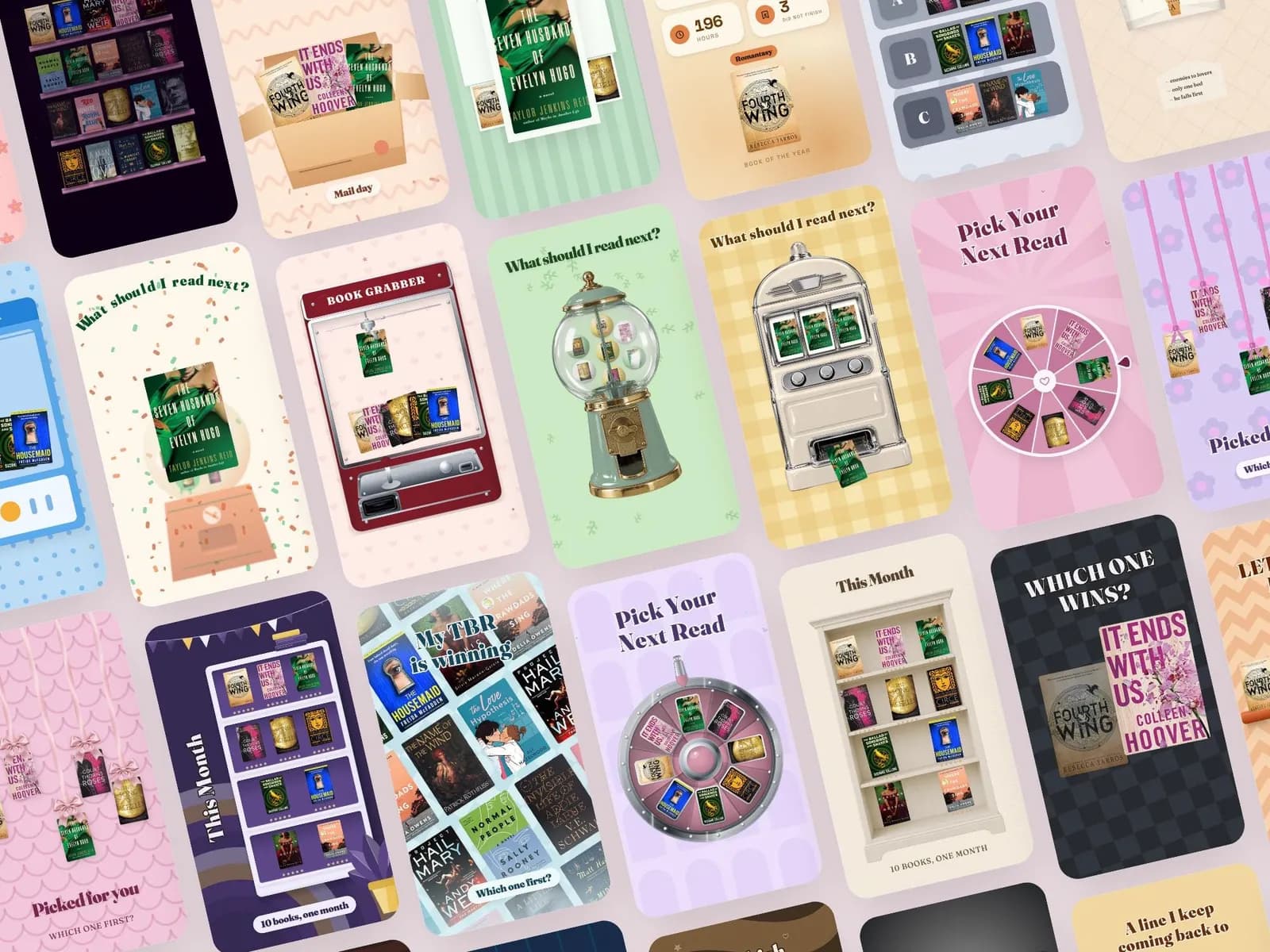
Canva templates are stills, and stills are what most of a book feed should be: a wrap-up is read, saved and come back to. Where movement earns its hour is reels and stories — a spin-the-wheel for choosing the next read, a TBR pile that builds itself, a cover reveal. Those are hard to build in Canva and quick to make in a tool drawn for it, which is why the animated set here runs in the browser rather than as a Canva file.
What a good set saves, in numbers
A monthly wrap-up built from scratch takes most people between forty minutes and an hour. From a set whose palette you have already made your own, it is under ten. Across a month of four shapes posted weekly that is somewhere around ten hours back — which is ten hours of reading, and on a book account, reading is the content.
The Coquette set here is drawn in pink for a soft, bright feed; the Cozy Romance set does the same job in burgundy and blush, with its layouts leaning on tropes and book club nights. Both are 1080×1350 feed posts with cover placeholders you fill in one drag, both carry the wrap-up, TBR and review layouts above plus a guide to swapping the colours and fonts, and both open in the free Canva plan.
Sets from this guide
Skip the blank page
See every set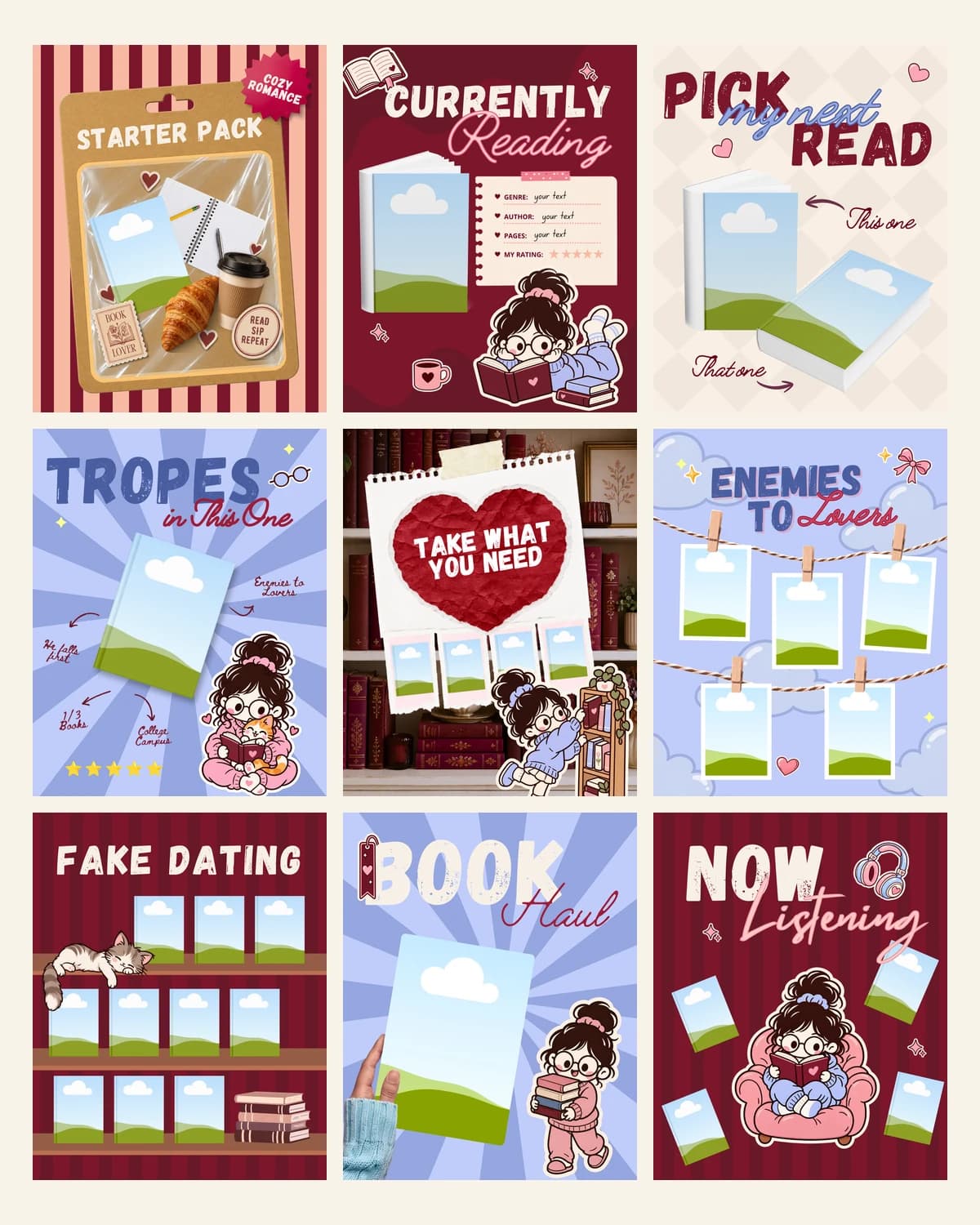
Keep reading